
"Welcome and Start Here" Page
Completion requirements
Key Takeaways
1. As you know, introducing yourself and your course is just as important in the online environment as in a face-to-face
2. In an emergent situation, providing this section in the online course can help ease disruption and set the stage for instructional continuity

In face-to-face courses, you have the opportunity to introduce yourself and the course, and to meet your students and allow them to get to know each other. This sets the ‘tone’ of the course and expectations, and facilitates trust.
Make the first thing your students see a “Welcome & Start Here” page to accomplish these goals online.
If you’re moving the course online unexpectedly, add this page to help orient your students and provide continuity from your face-to-face classroom to the online environment. To fully use this opportunity in a subsequent term, you can begin to communicate with your students leading up to the semester, and use different interactive approaches to engage students from the beginning.
Beginner
Intermediate
Here are some suggestions:
- Send out a welcome message
before the course starts. You can send an email, post on the LMS, or
get creative with a video or other media to make the most of your first
interaction with your students. When designing your messaging, remember
that students will come into your class with varying needs and
preferences, and messaging should be equity-focused from the beginning.
Make sure that any media used meets accessibility standards (for
example, captions, transcripts, etc.), and that your welcome is
inclusive and open to the differentiated contexts from which your
students will begin the course.
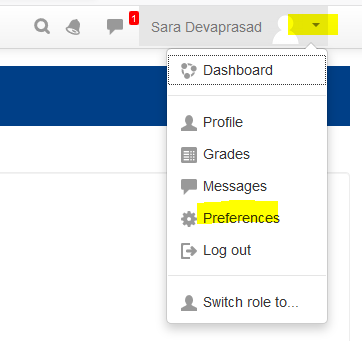
- Use the Label tool in Moodle to create a short video in Moodle. Select the Record Video button to create a short video. (If you do not have the Record Video button, enable the Atto editor. The Atto editor can be enabled by doing the following:
Select Preferences as shown in the picture below. Select Editor Preferences from the User Account section. Then, select Atto HTML editor as the Text Editor.
Advanced
Identify different methods to welcome students in the online classroom. Here’s a quick resource
for some ideas on how you can create a sense of community and help your
students become comfortable with you and each other. There are lots of
virtual icebreakers that can be easily found with a quick web
search—feel free to find something that fits your personality and
classroom environment, and get students engaged from the start.
Last modified: Monday, July 6, 2020, 1:23 PM