Transferring Bb Content to Moodle
You can copy content from a Blackboard course site to a Moodle course site as shown below:
- Open your Blackboard course.
- From the Course Management tools in your Blackboard course, click on "Files".
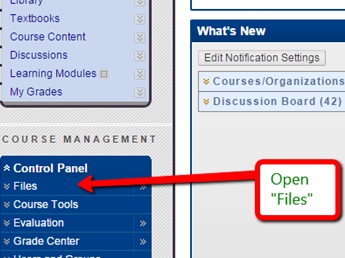
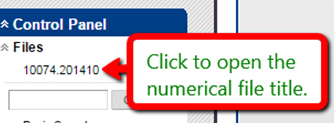
3. Click on the numerical file title to open your course files.
4. Select all the files you want to copy over into your Moodle course, then "Download".
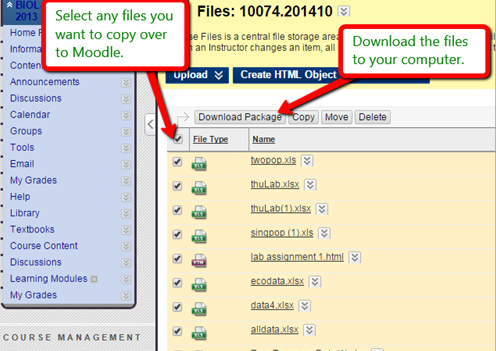
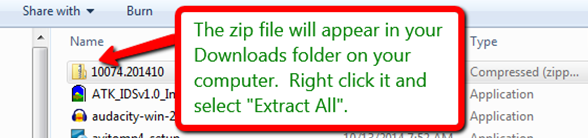
5. The zipped file folder will appear in your computer's "Downloads" folder. Right-click on the zipped file and select "Extract".
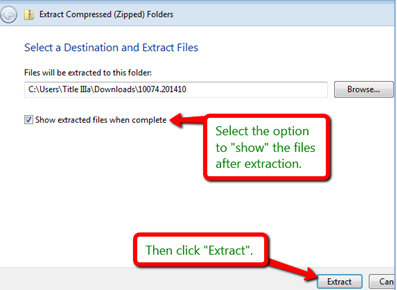
6. In the extraction pop-up, select the option to "show extracted files when complete". You will return to this file collection and copy those same files after you open your Moodle course.
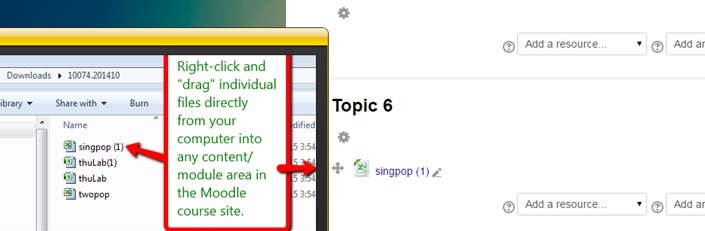
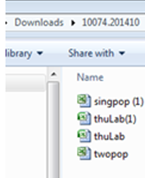
Extracted files will show as single files:
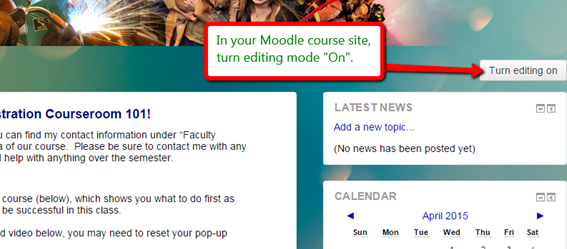
7. Open your Moodle course, and in the top right corner click to "Turn editing on."
8. Using the unzipped files you downloaded onto your computer from Blackboard, you can simply drag-and-drop those files one by one into the preferred content/module areas of your Moodle course site. Right-click on the file, and while continuing to hold down the right mouse button, drag the file to the desired location in Moodle: