
Deleting Zoom Cloud Recordings
Completion requirements
Start here - How to delete cloud recordings (created December 2021)
You can delete all cloud recordings in your account, all recordings
in search results, or recordings for a specific meeting. This will move
the files to the trash and you can permanently delete them from the
trash manually. If you don't permanently delete them manually, they will
be deleted after 30 days.
- Sign in to your Zoom web portal.
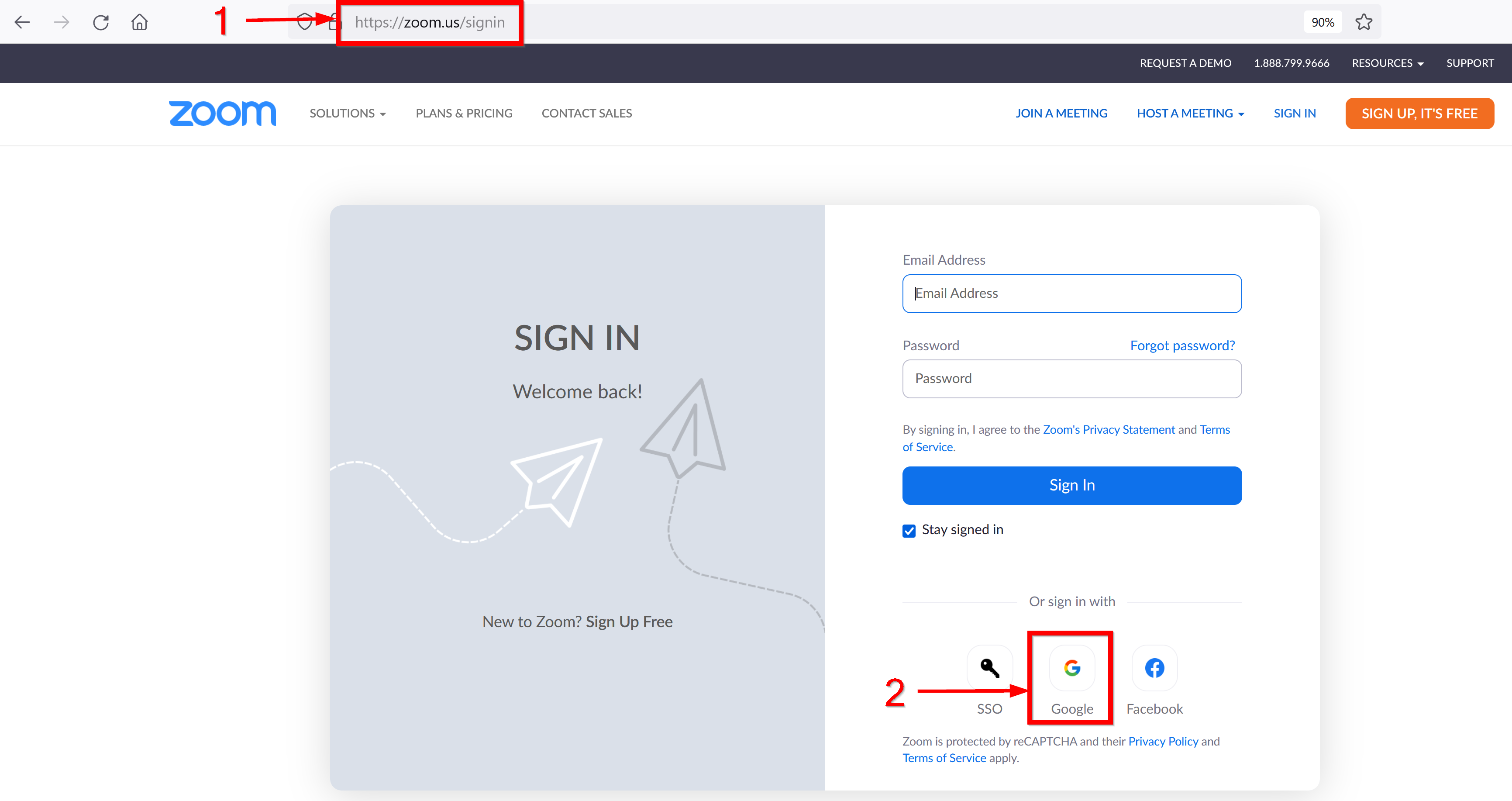
- Click Recordings from the left panel
You will see a list of your cloud recordings as shown in the picture below: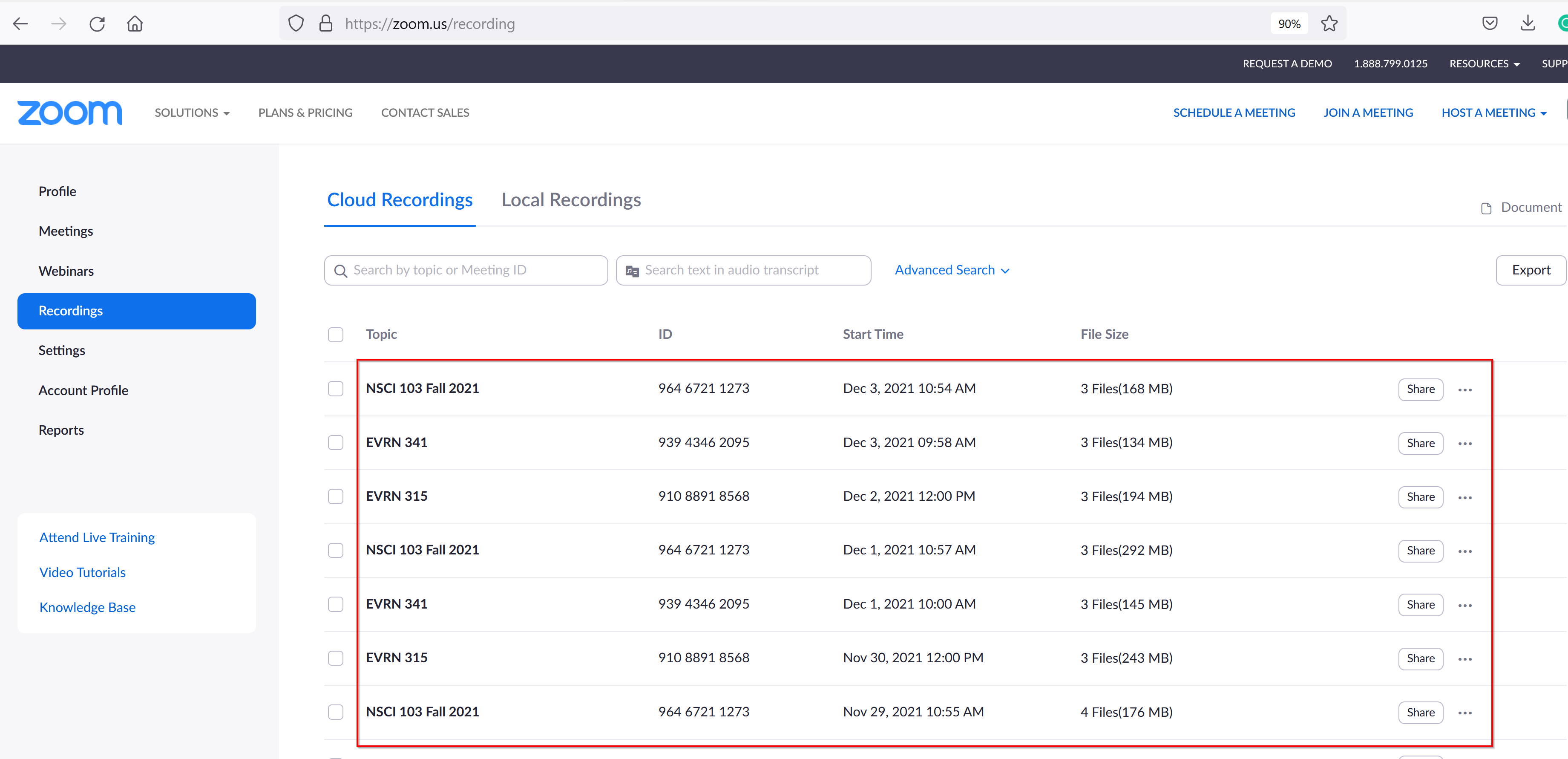
Follow one of these methods to delete recordings:
How to delete specific recordings from the list
1. Select the check box to the left of the recordings that you want to delete and select the Delete Selection button as shown in the picture below.
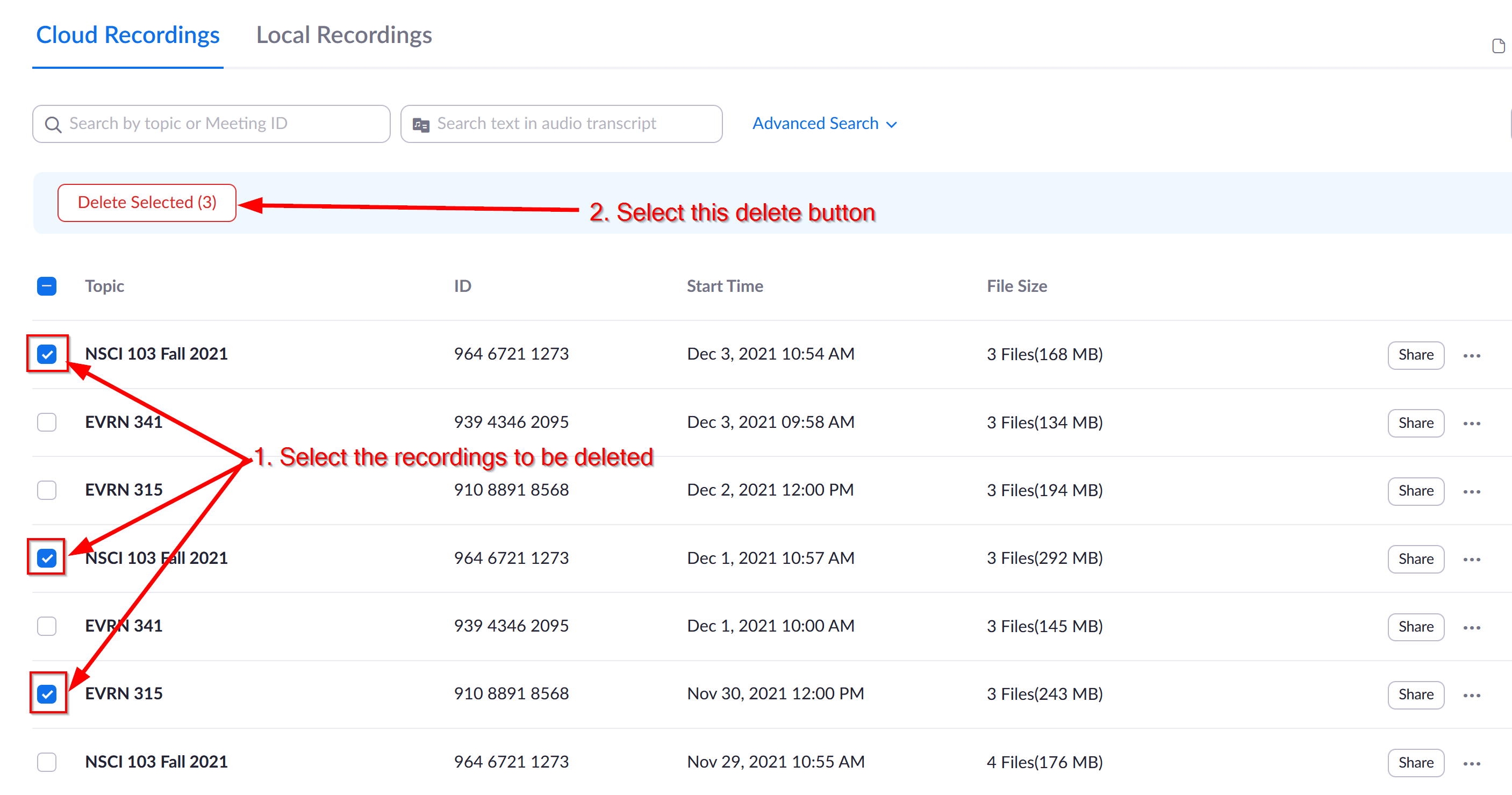
2. Select the Delete button to move the recordings to trash.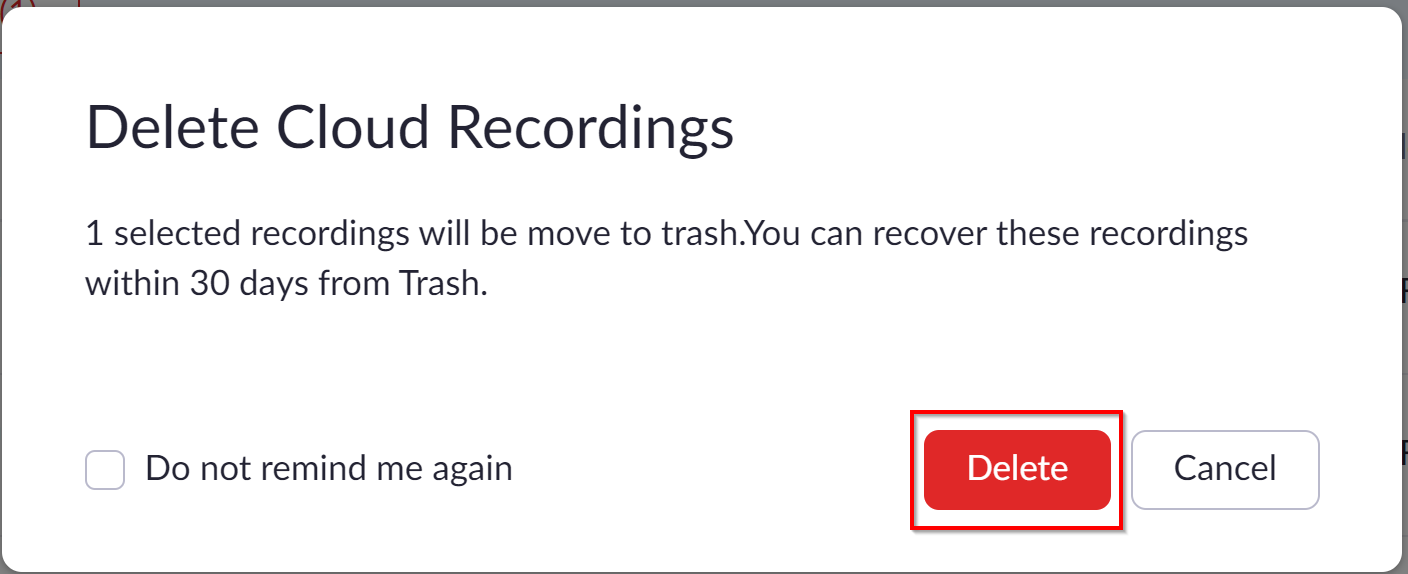
How to delete cloud recordings by meeting ID
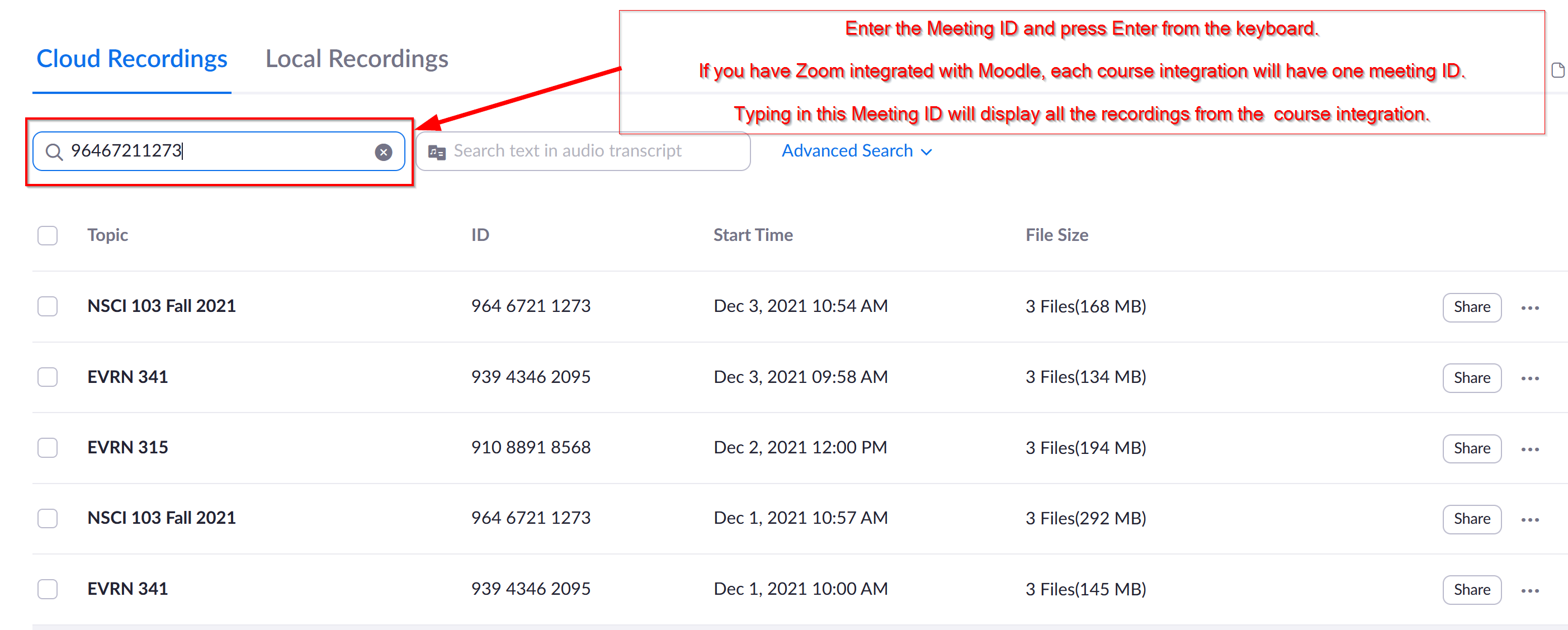
- Enter the meeting ID in the search box, then select Enter from the keyboard
- Click the left of the Topics box to select all recordings.
Select the button Delete Selected (15*) to delete the recordings on this page
Select the Select all 41* recordings link to delete all the recordings with the Meeting ID searched
*These numbers might be different depending on your search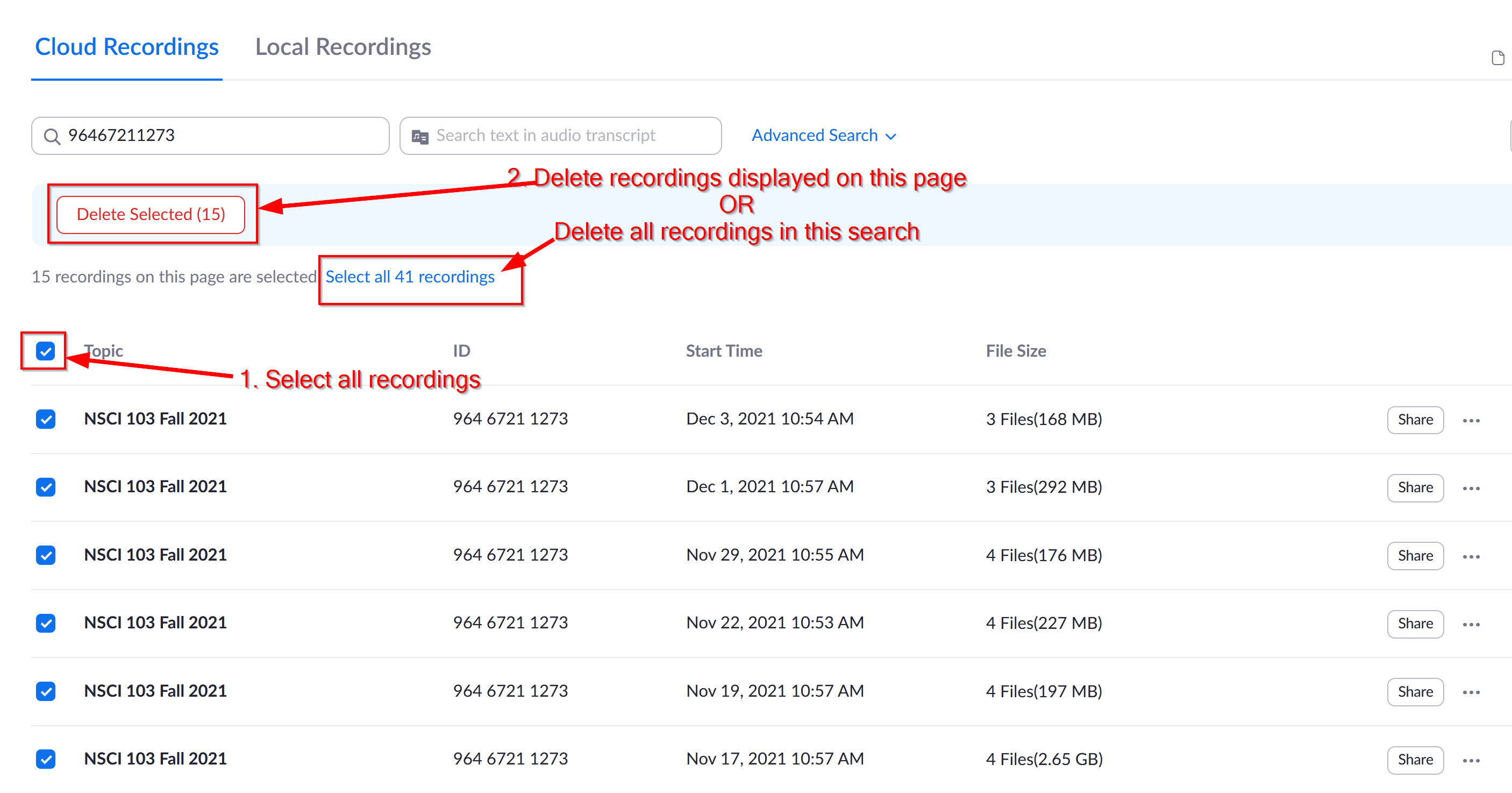
- Select the Delete button to move the recordings to trash.
How to delete all cloud recordings
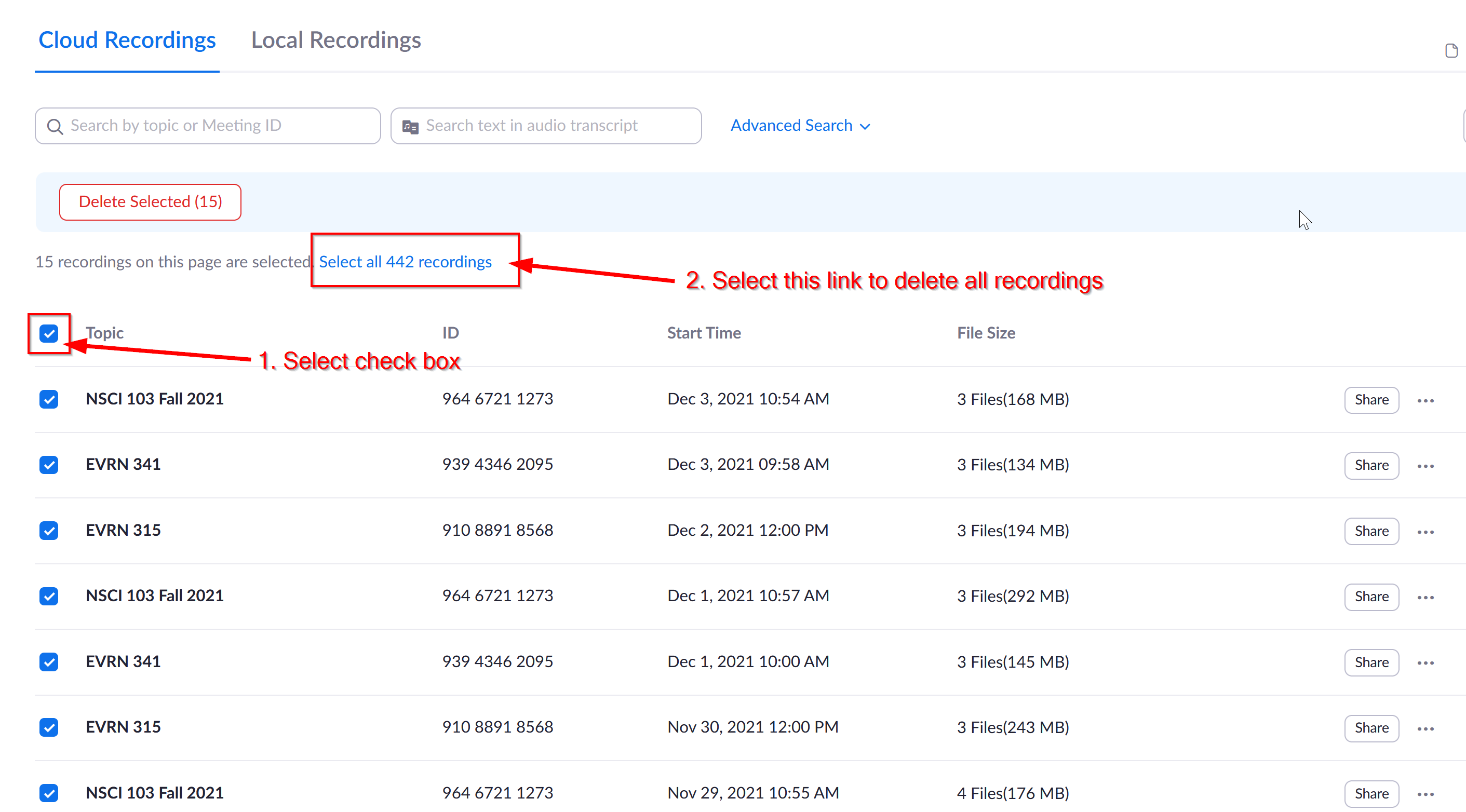
- Select the check box to the left of Topic as shown in #1 in the picture below. This selects all your recordings.
- Select the link Select all 442 recordings link shown in #2. The number of recordings displayed would vary depending on the number of recordings you have.
- Select the Delete button to move the recordings to trash.
If you have any questions, contact Sara Devaprasad (sdevaprasad@lssu.edu) for assistance.
Last modified: Wednesday, December 15, 2021, 4:55 PM