
Downloading Zoom Cloud Recordings
Completion requirements
Start here - How to download cloud recordings (created December 2021)
- Sign in to your Zoom web portal.
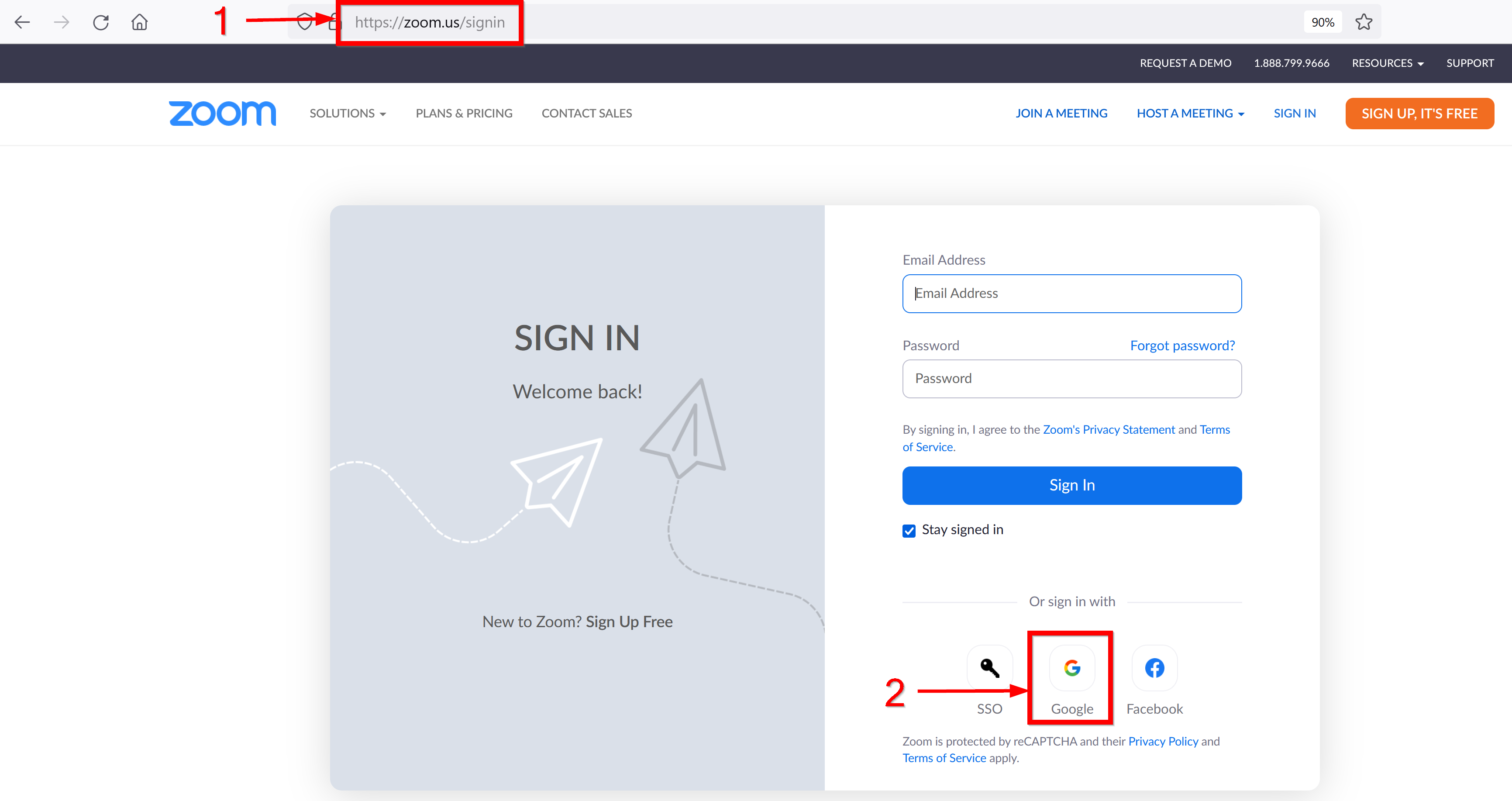
- In the navigation menu, follow one of these options:
Click Recordings.
You will see a list of your cloud recordings as shown in the picture below: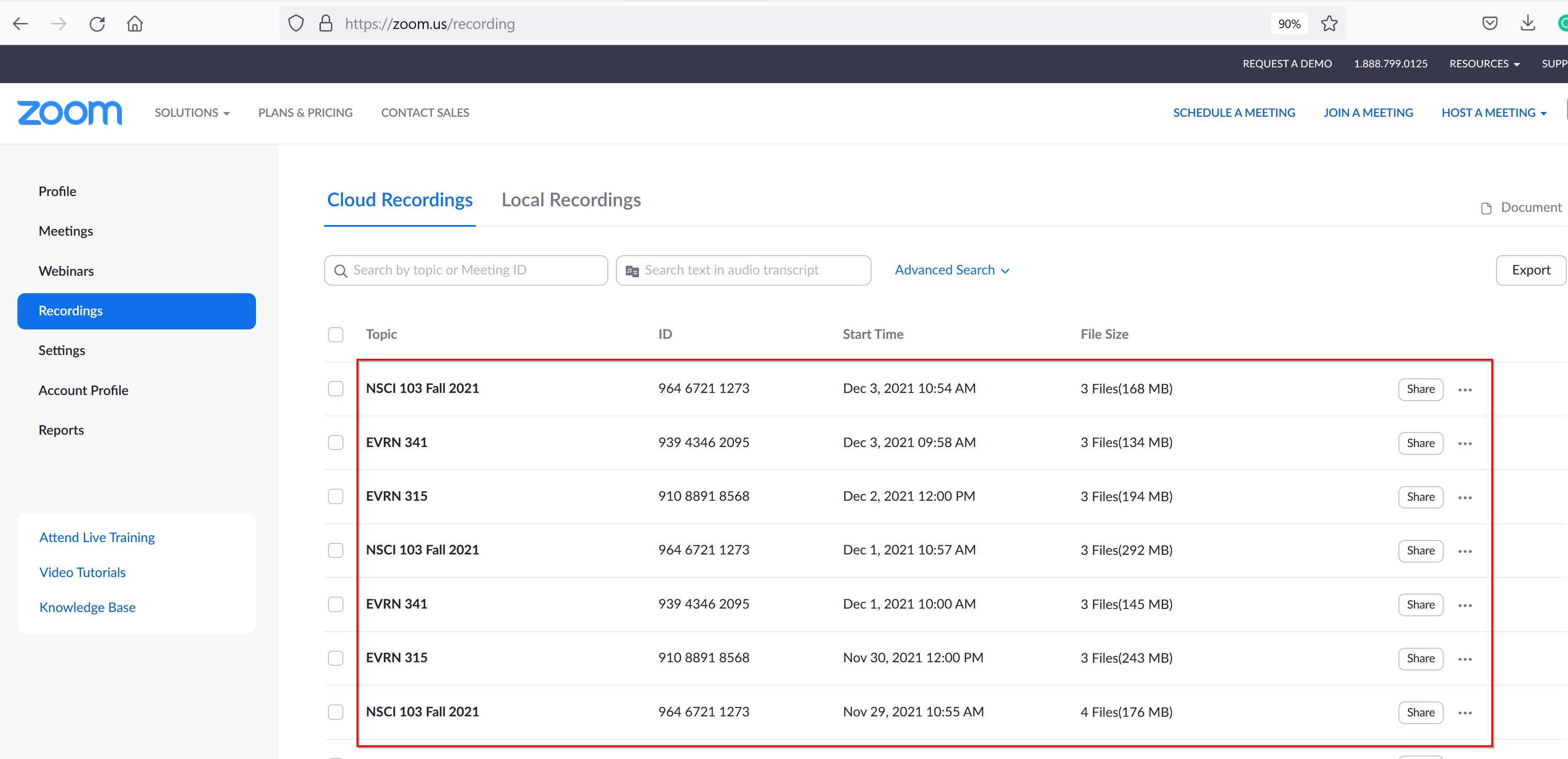
- Locate the recording you wish to download from the list. You can use
the search at the top of the page to find recordings by title, ID
number, creation date, or transcript text.
As of 12/13/21, each of the recordings has to be downloaded one at a time.- Click the recording name to see all of its included files.
Alternatively, you can quickly download all recording files by clicking
the “…” button on the right.
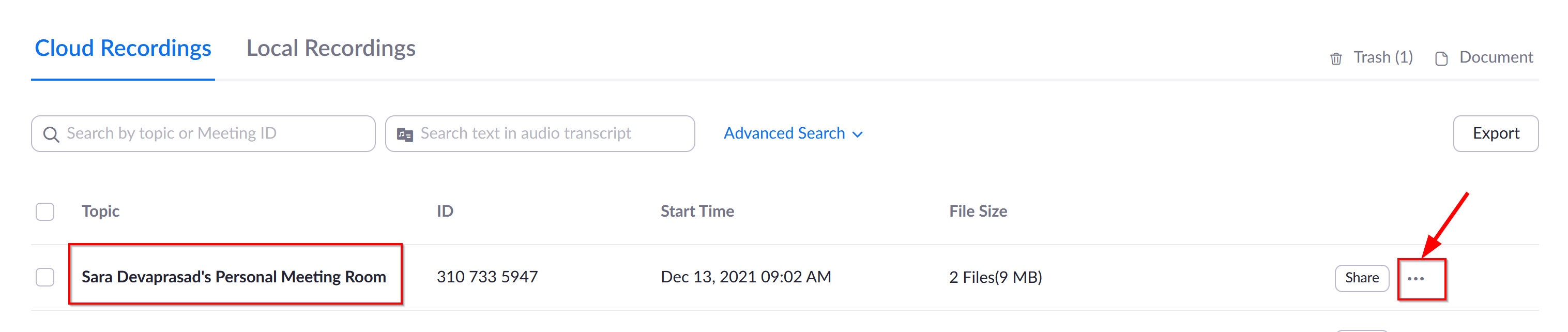
- Clicking on the recording name displays the following screen. Hover over the recording file you wish to download and click the
download button that appears. “Shared screen with speaker view” is
typically the main recording file. Check to see if this is the file you want to download.
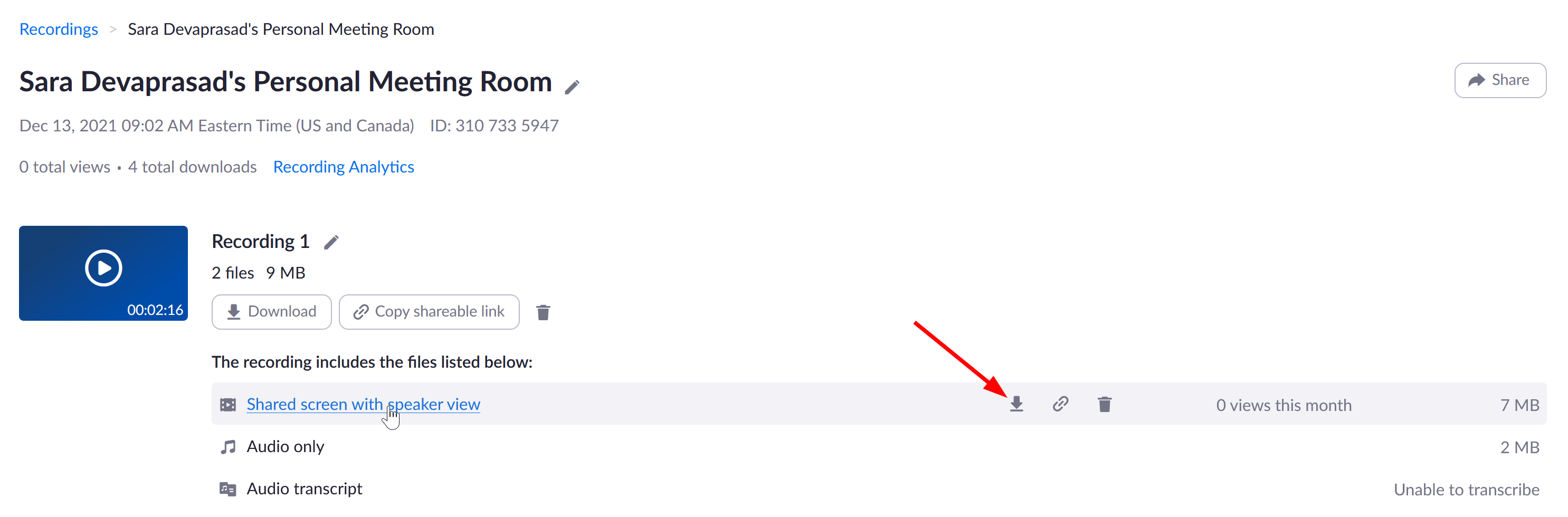
Files download in the following formats:
- Video and audio: MP4
- Transcripts and Captions: VTT
- Chat: TXT
If you have any questions contact Sara Devaprasad (sdevaprasad@lssu.edu) for assistance.
- Click the recording name to see all of its included files.
Alternatively, you can quickly download all recording files by clicking
the “…” button on the right.
Last modified: Wednesday, December 15, 2021, 4:55 PM