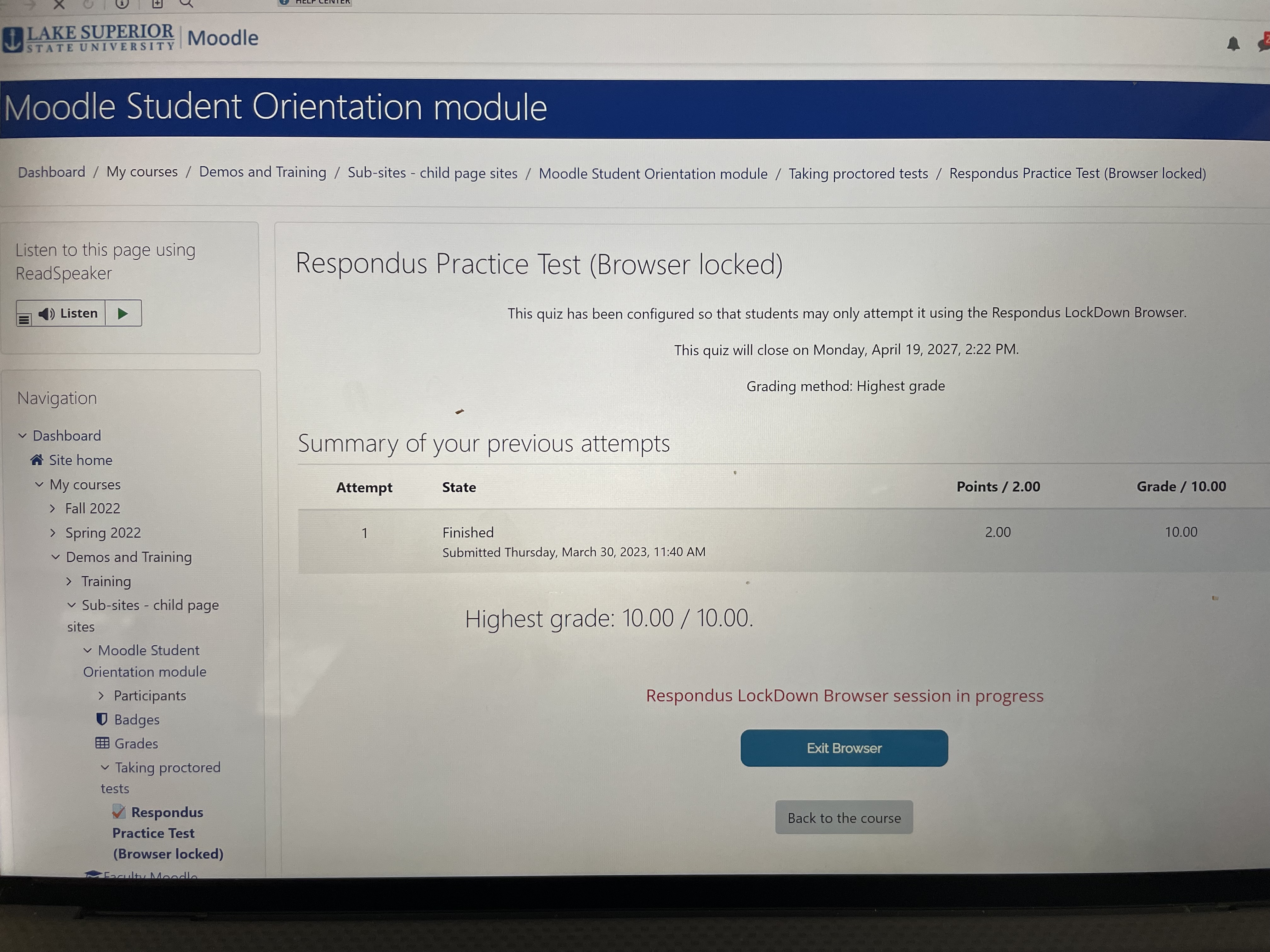
How-To Info: Taking a test with Respondus LockDown browser
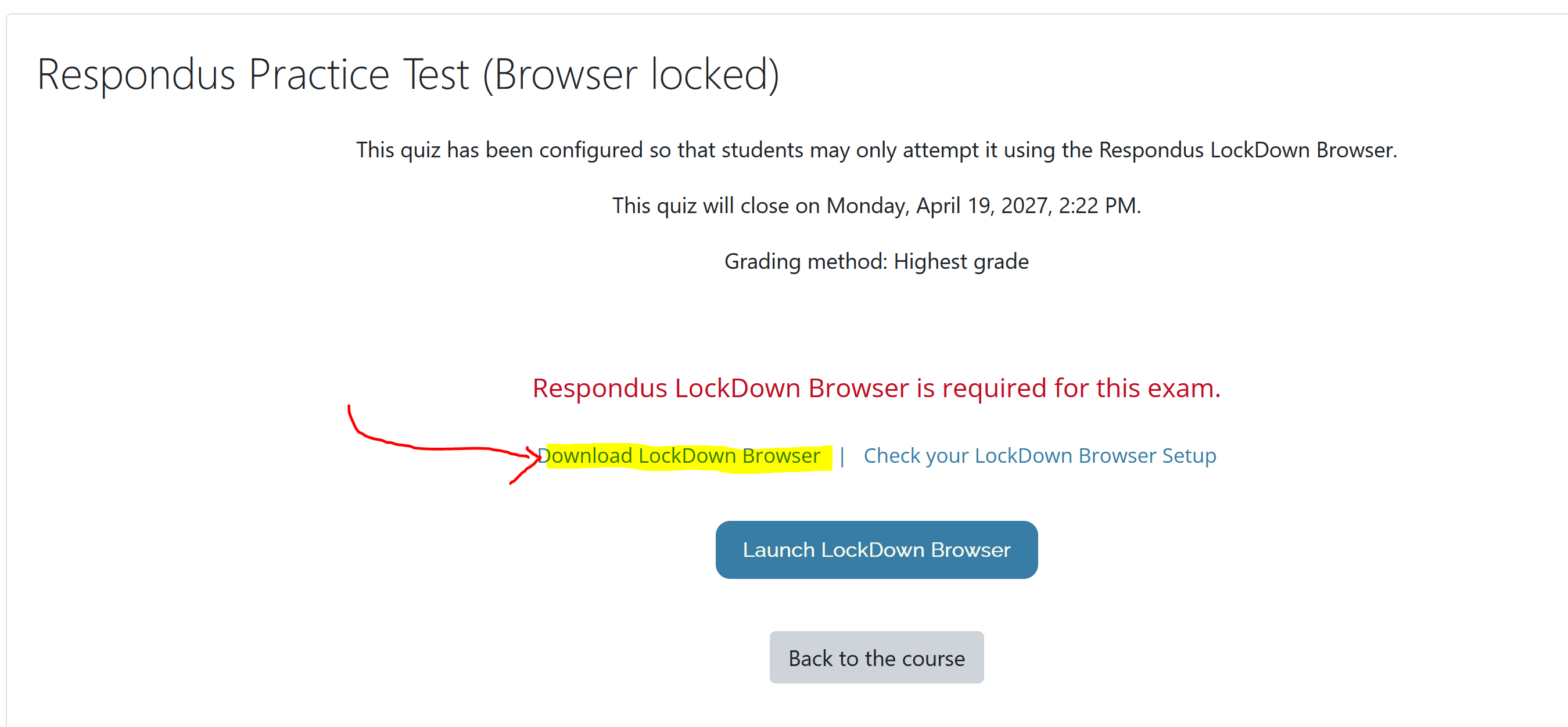
Select the Moodle test link. Below is a picture of a sample test link:

Click on the link, Download LockDown Browser as shown in the picture below
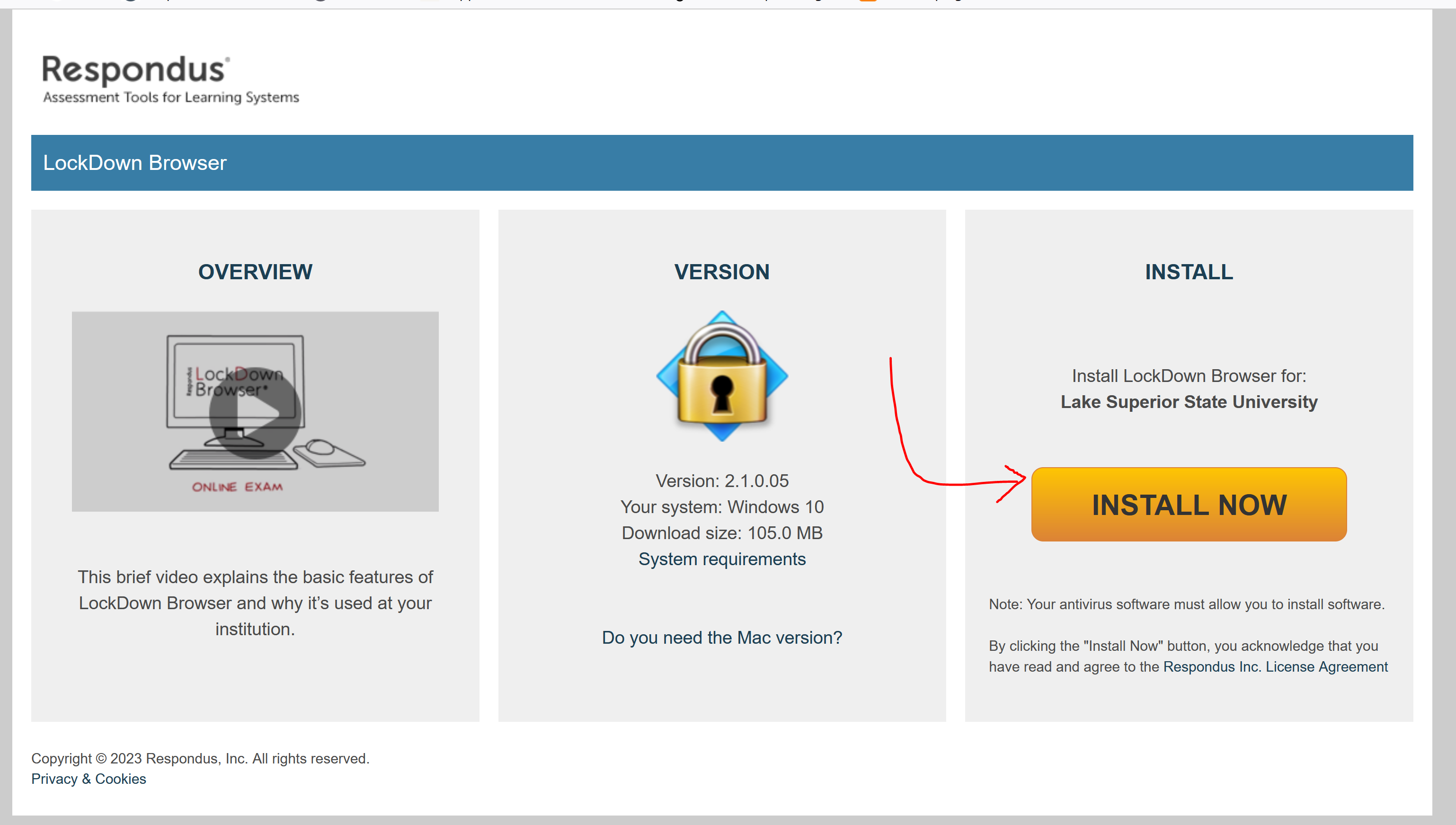
Select the Install Now button
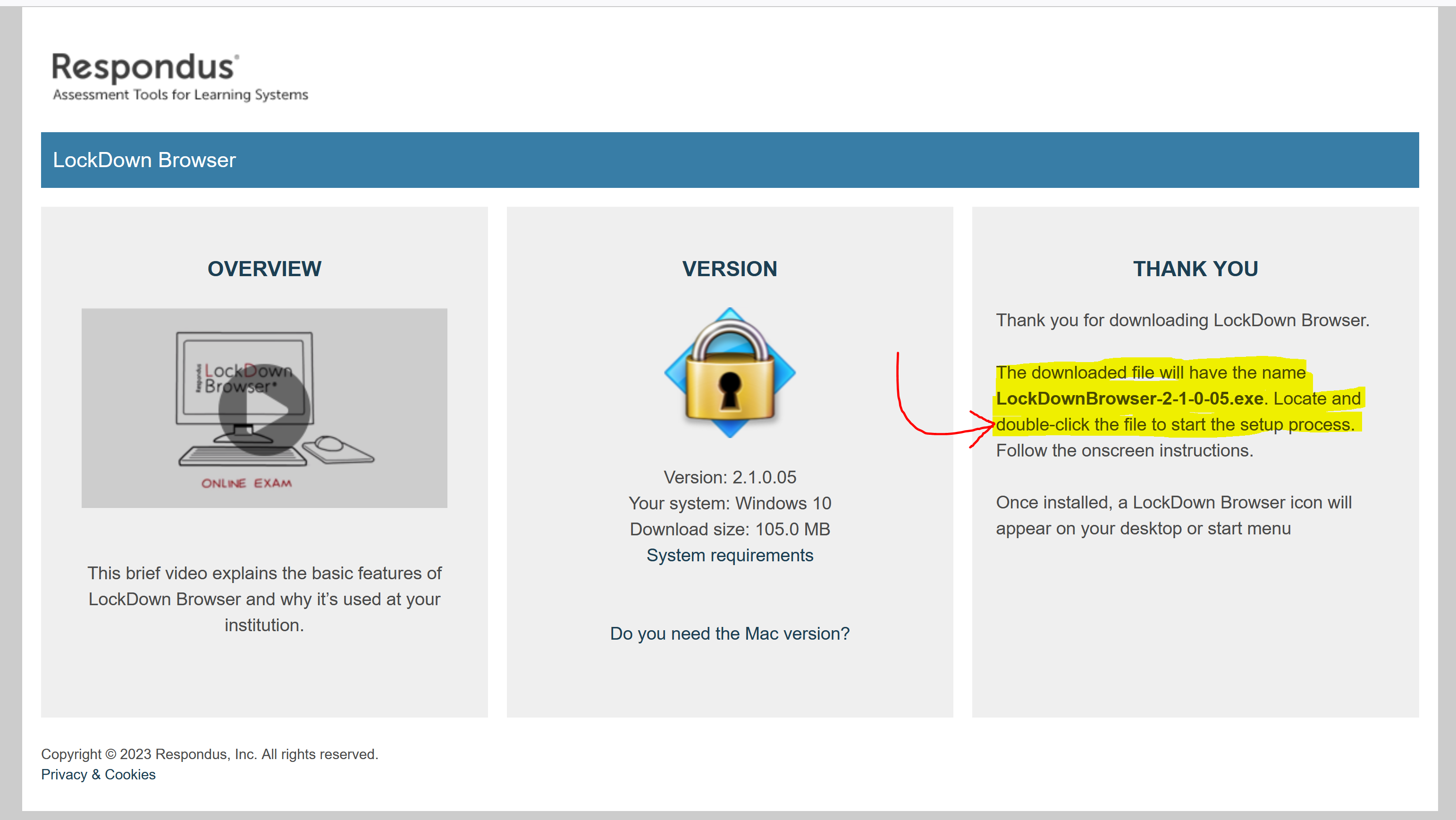
Find the downloaded file and double-click on it. Follow the prompts. Now you are ready to take the test using Respondus LockDown browser
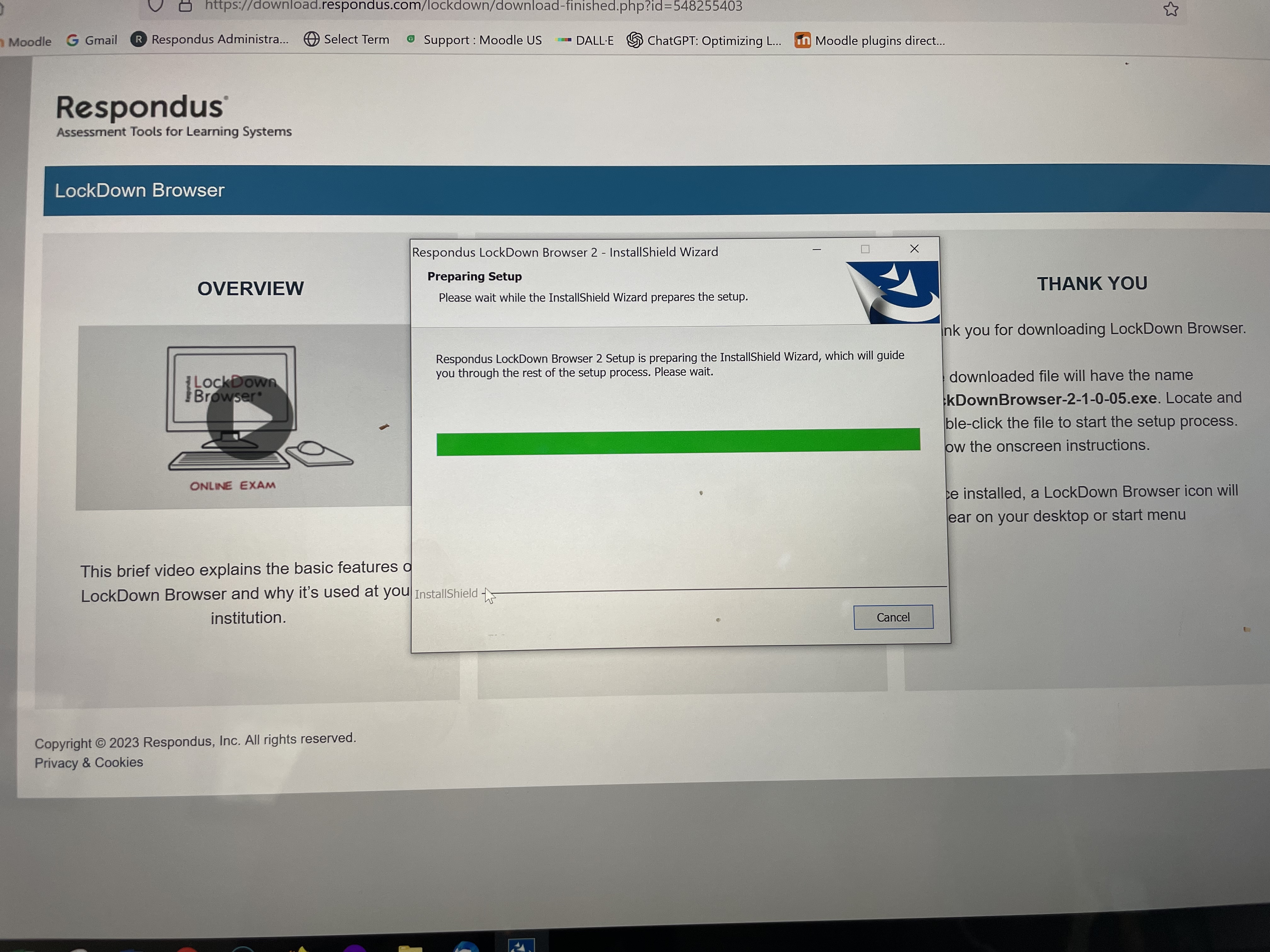
The Respondus software is being setup
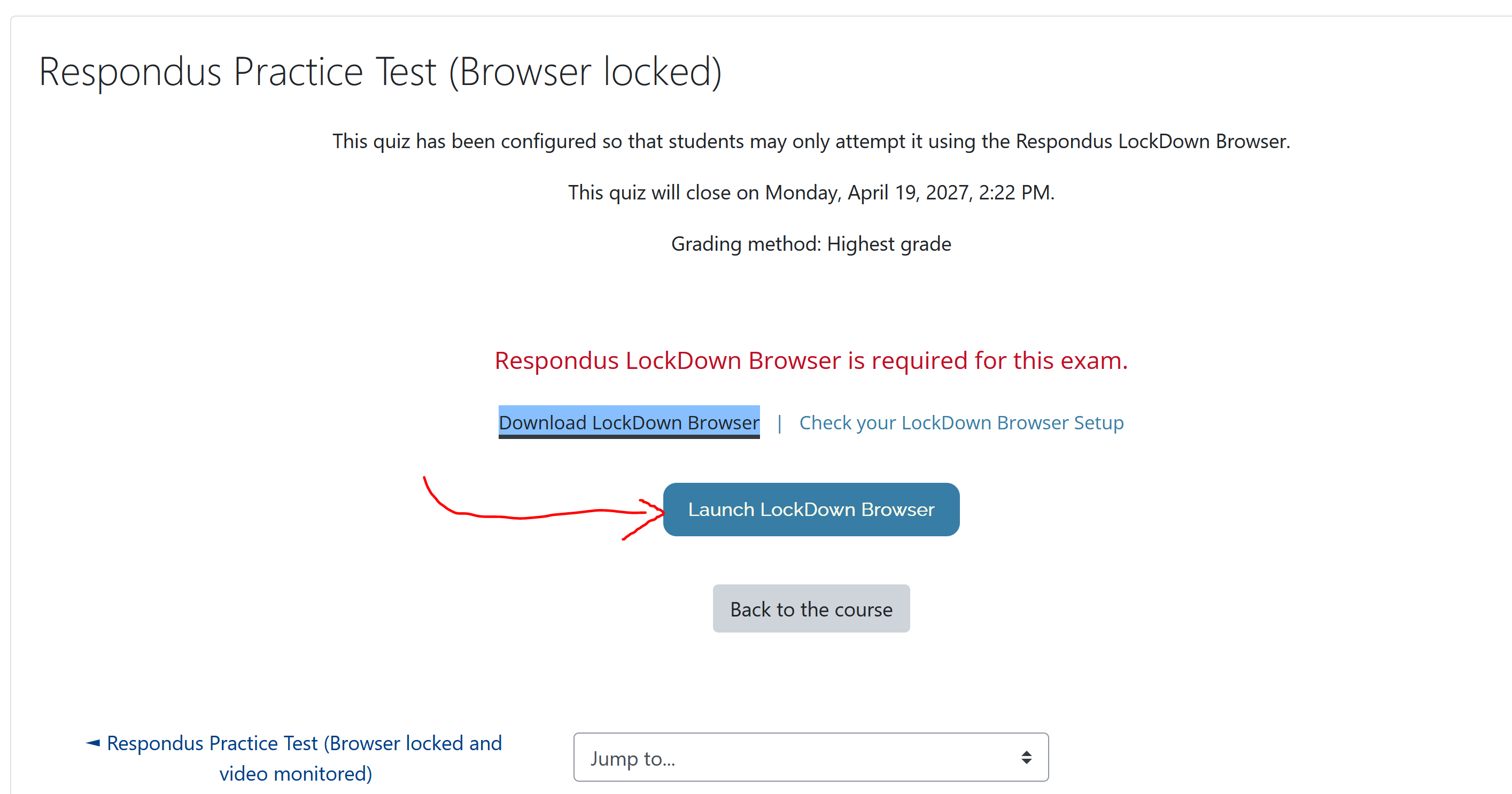
Select the button Launch LockDown Browser - see picture below
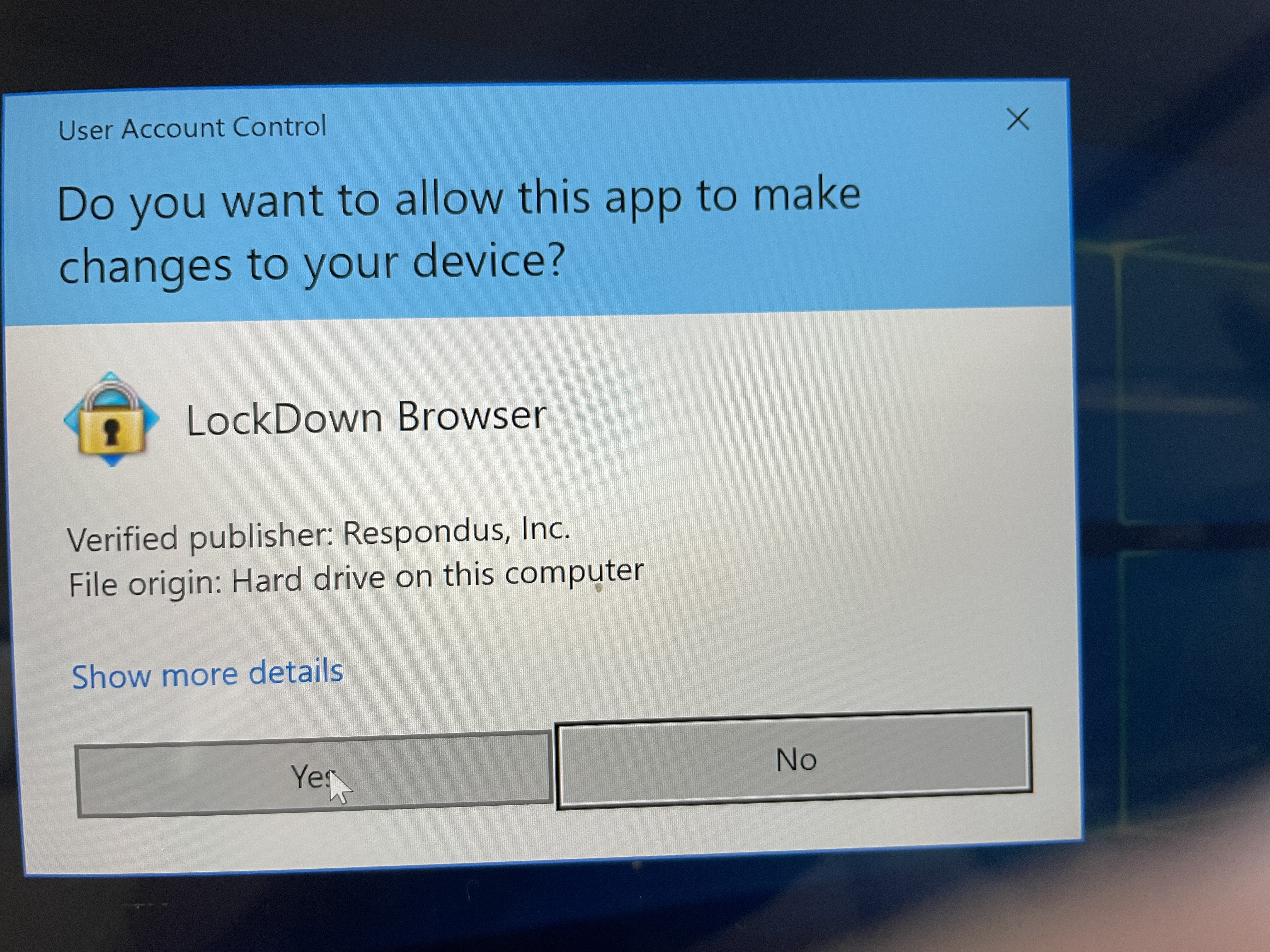
Select Yes in the window shown below
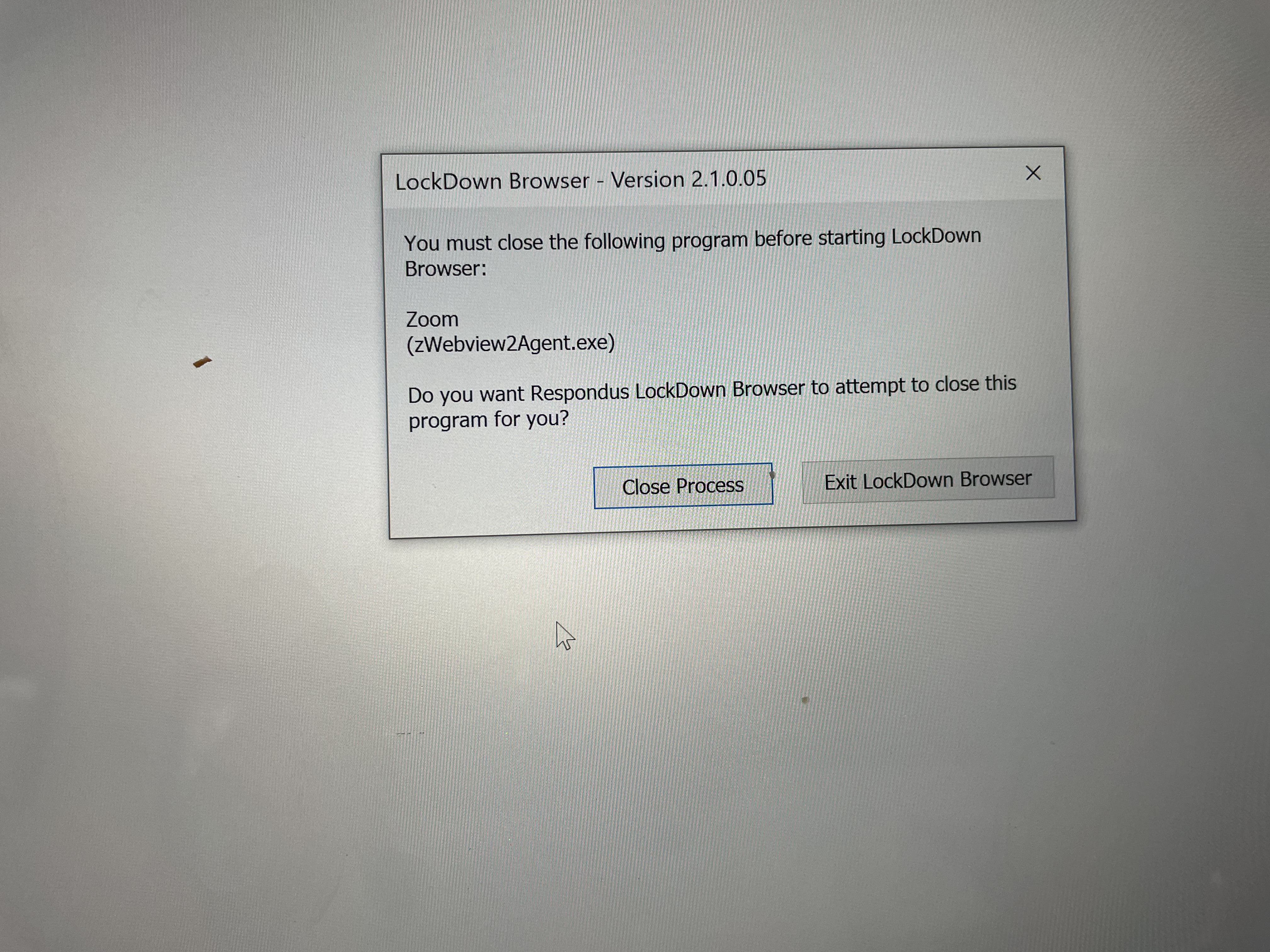
Choose Close Process. The system will log you out of all other programs.
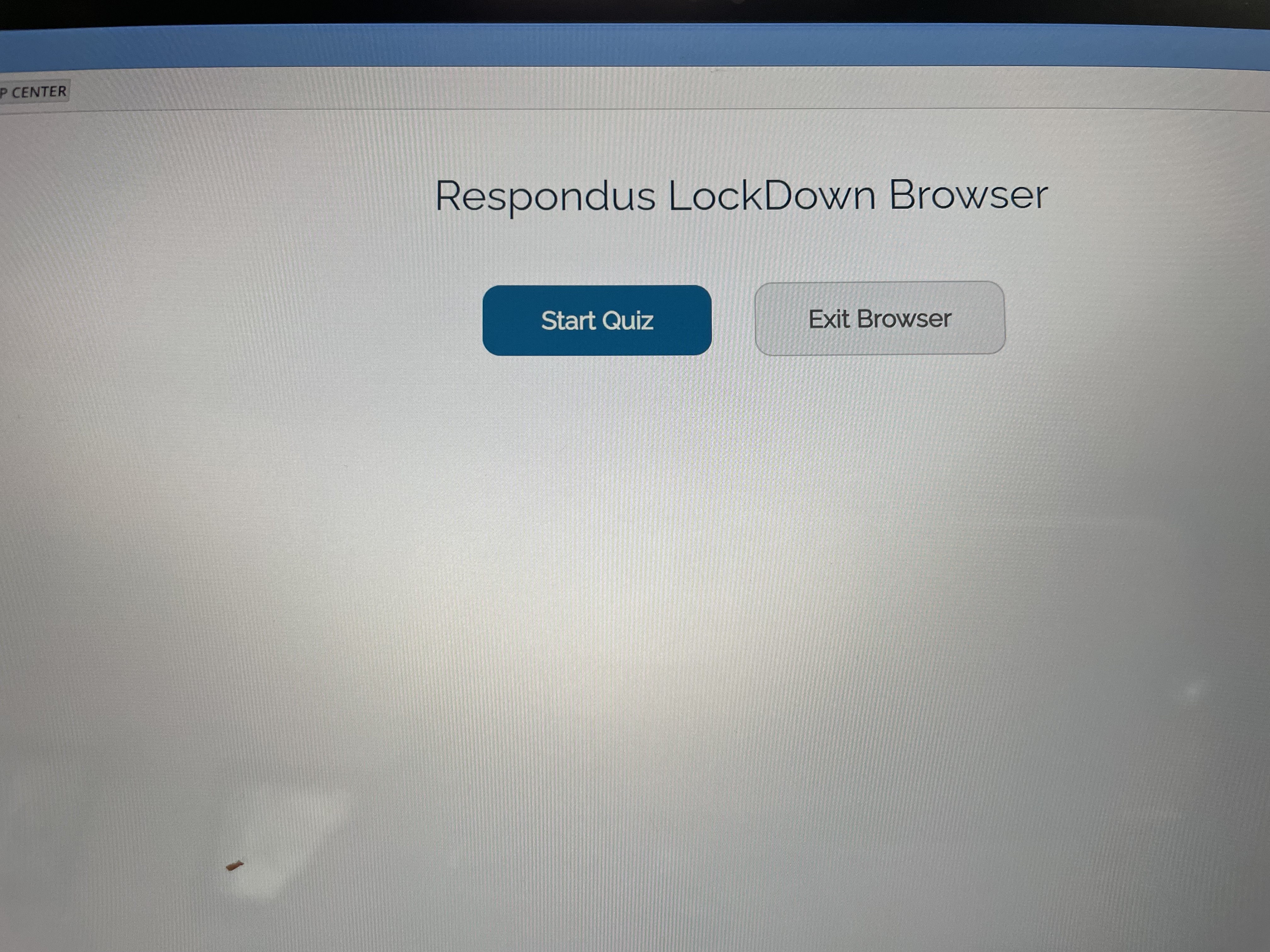
You are ready to start the quiz now! So, select Start Quiz
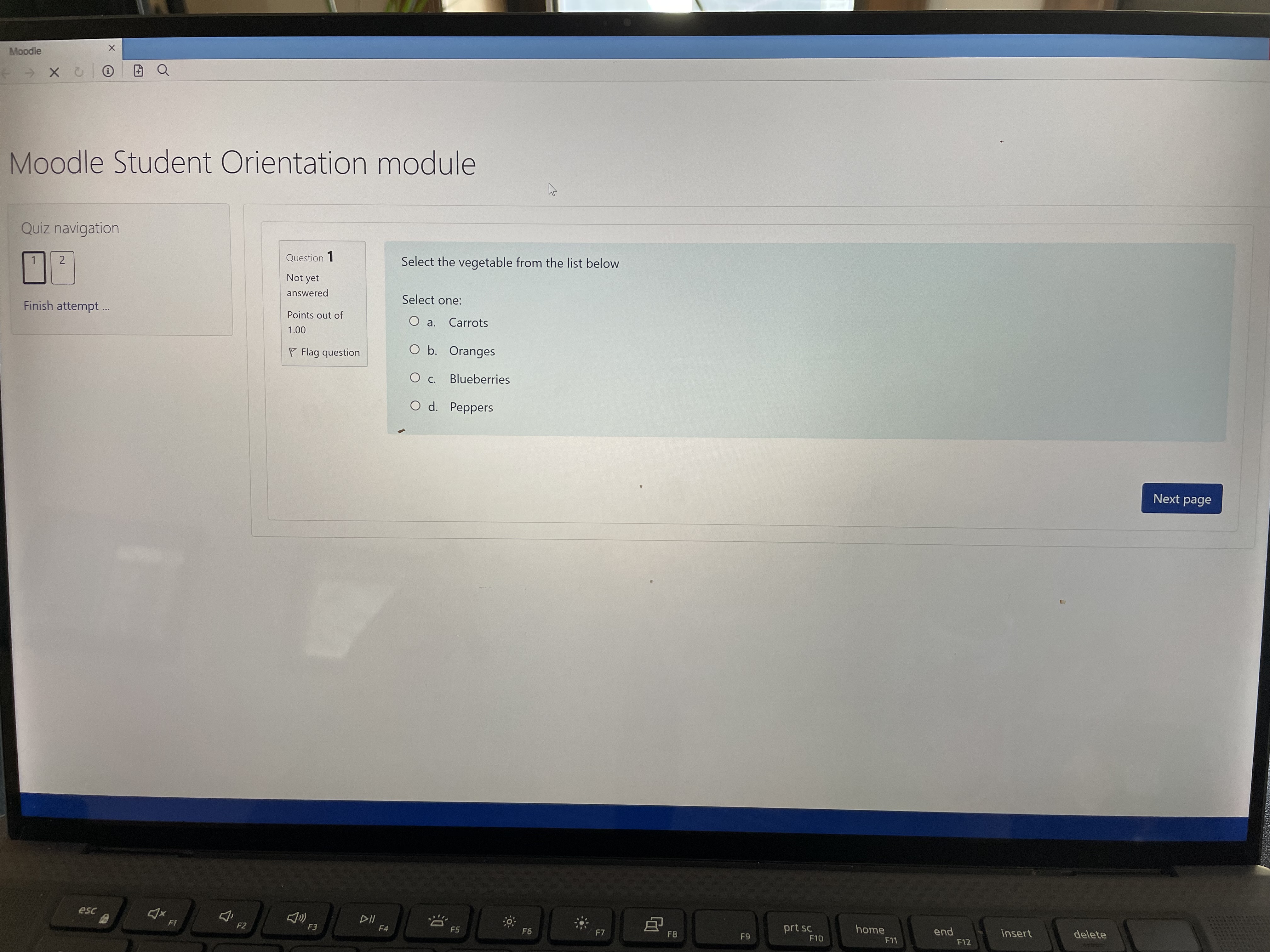
Answer the questions on the quiz
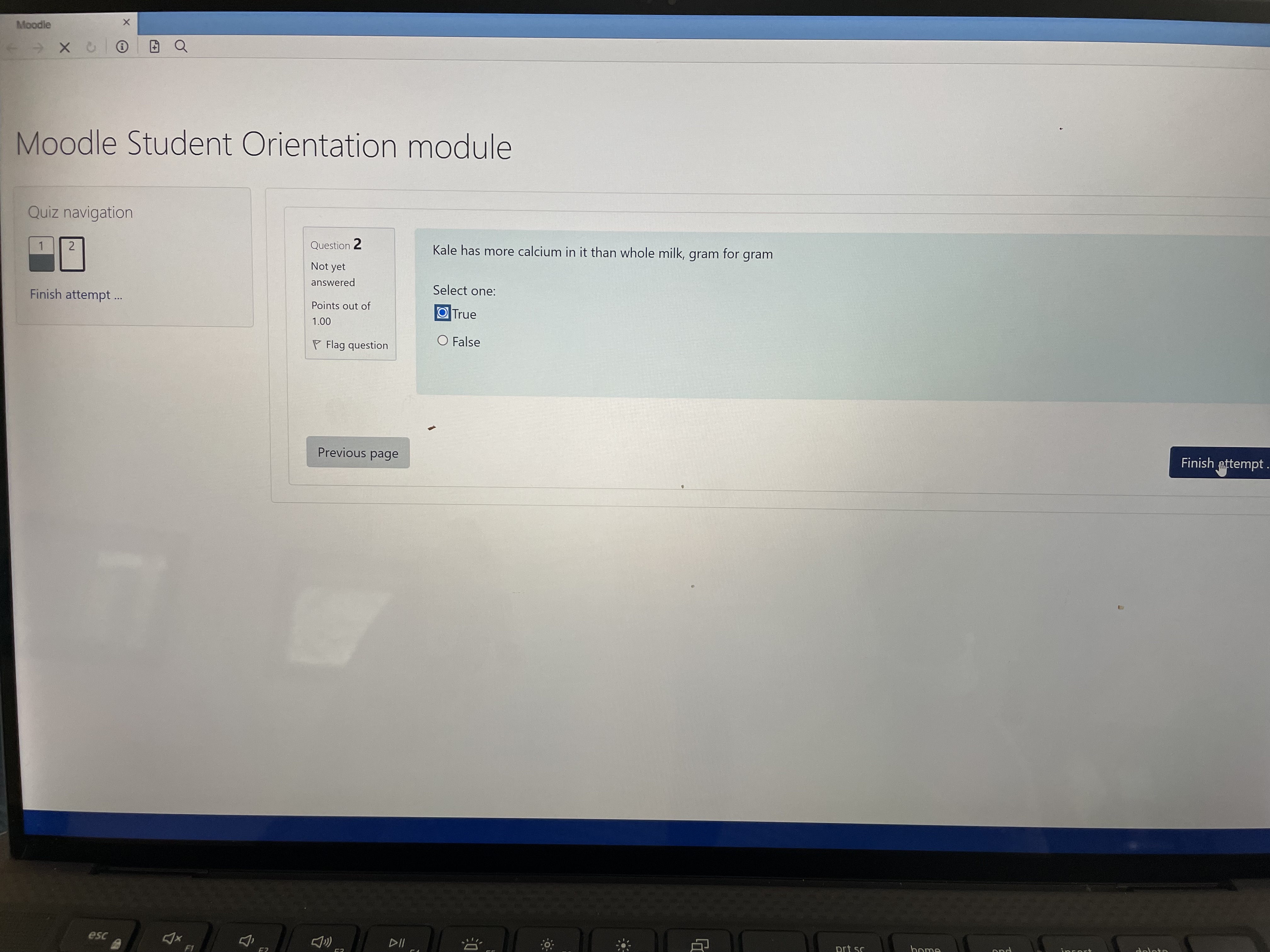
When complete select Finish attempt - like you usually do.
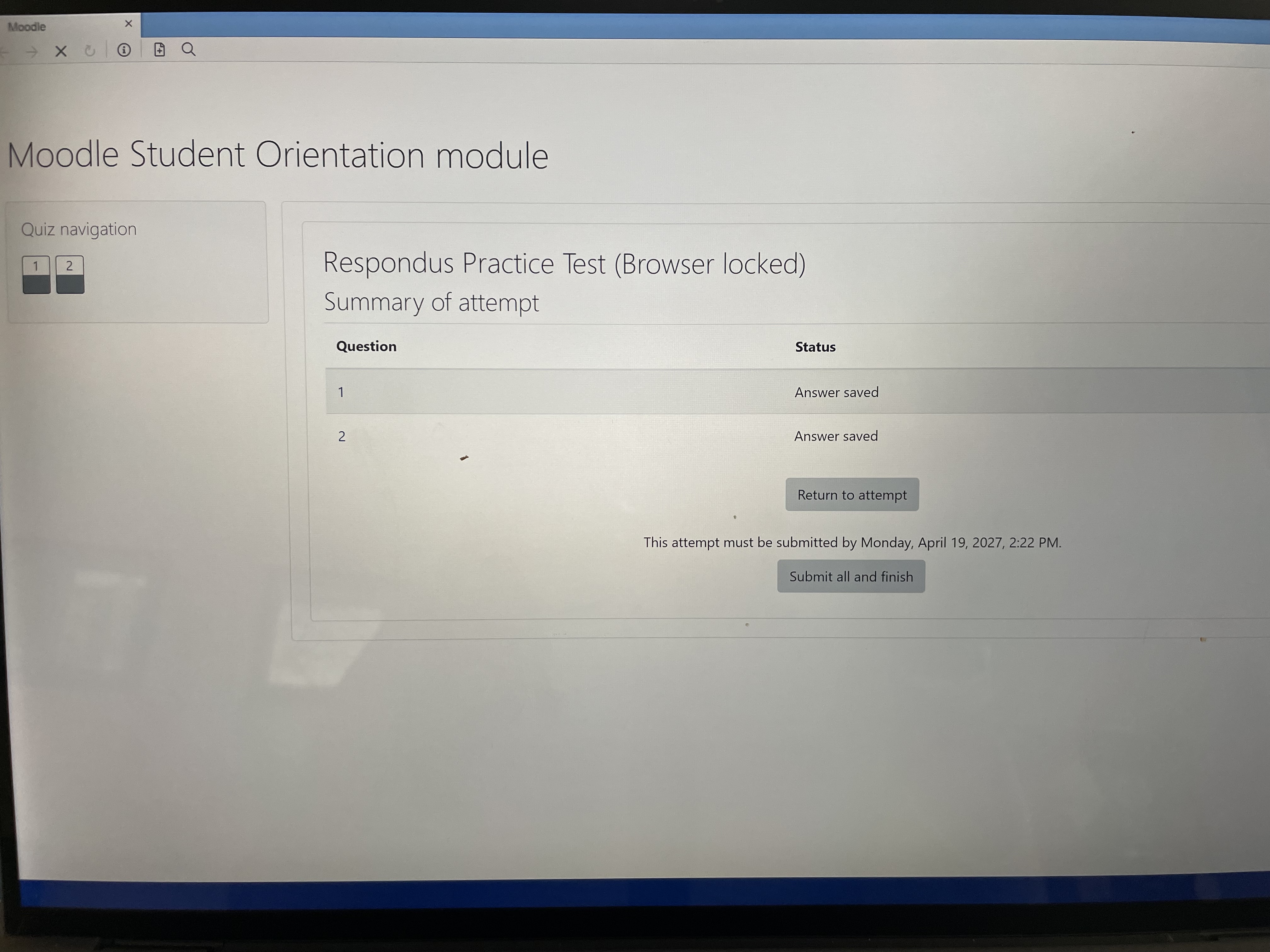
Select Submit all and finish
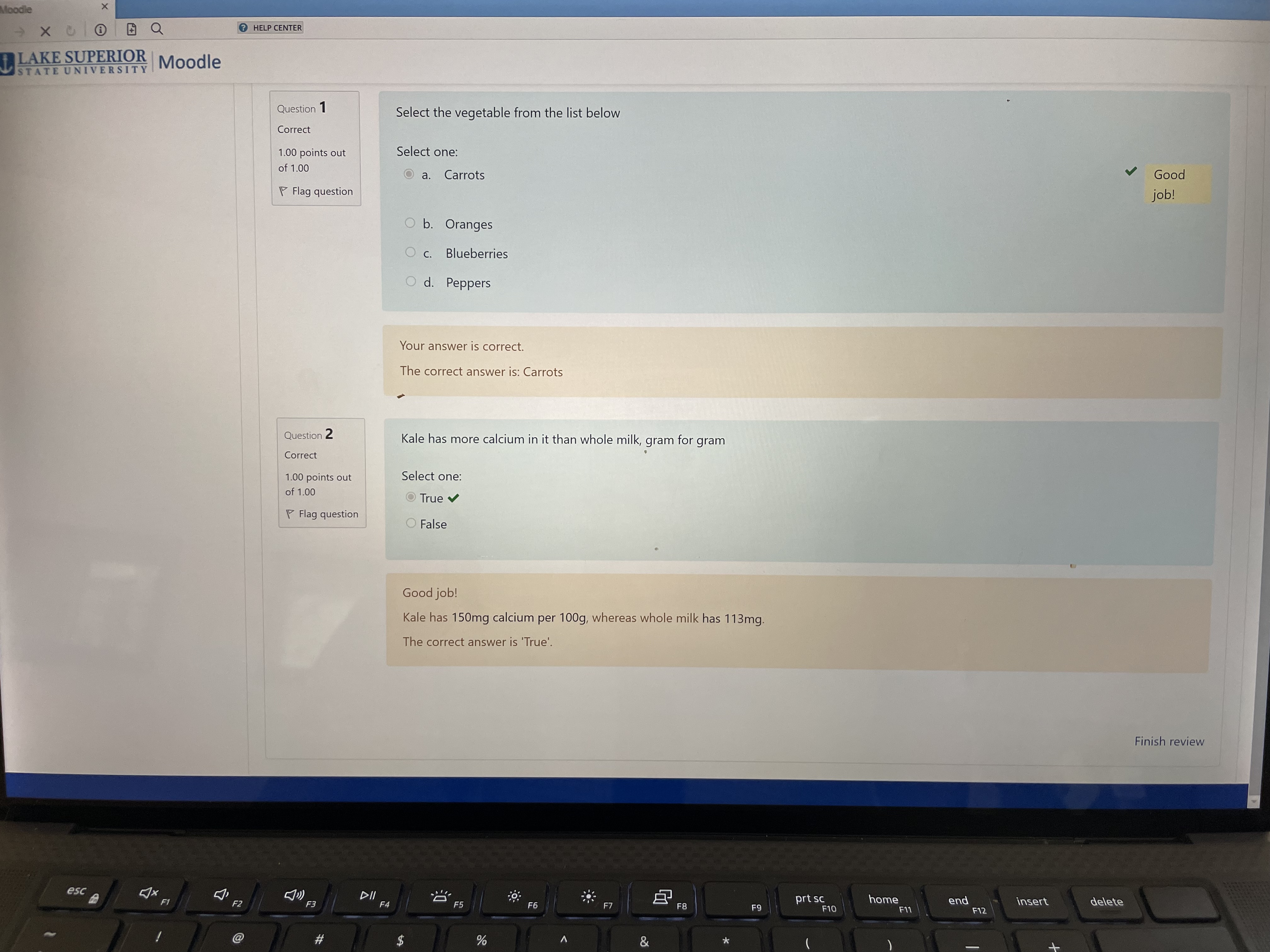
Select Finish Review
Select Exit Browser to get back to your Moodle course.